
Common Issues and Troubleshooting Steps:
What can I do if my container is crashing?
What can I do if my container is crashing?
Click the Code Sandbox icon in the chat bar, then click Reset…, then click Restart container. This safely restarts the code environment and preserves your files and settings.If you need more RAM, click on Code Sandbox icon → Sandbox Settings and switch to Memory Boost (available on the Pro plan and higher). See Containers for details.If restarting doesn’t fix it, expand I’m still having issues in the same dialog to reveal Factory Reset.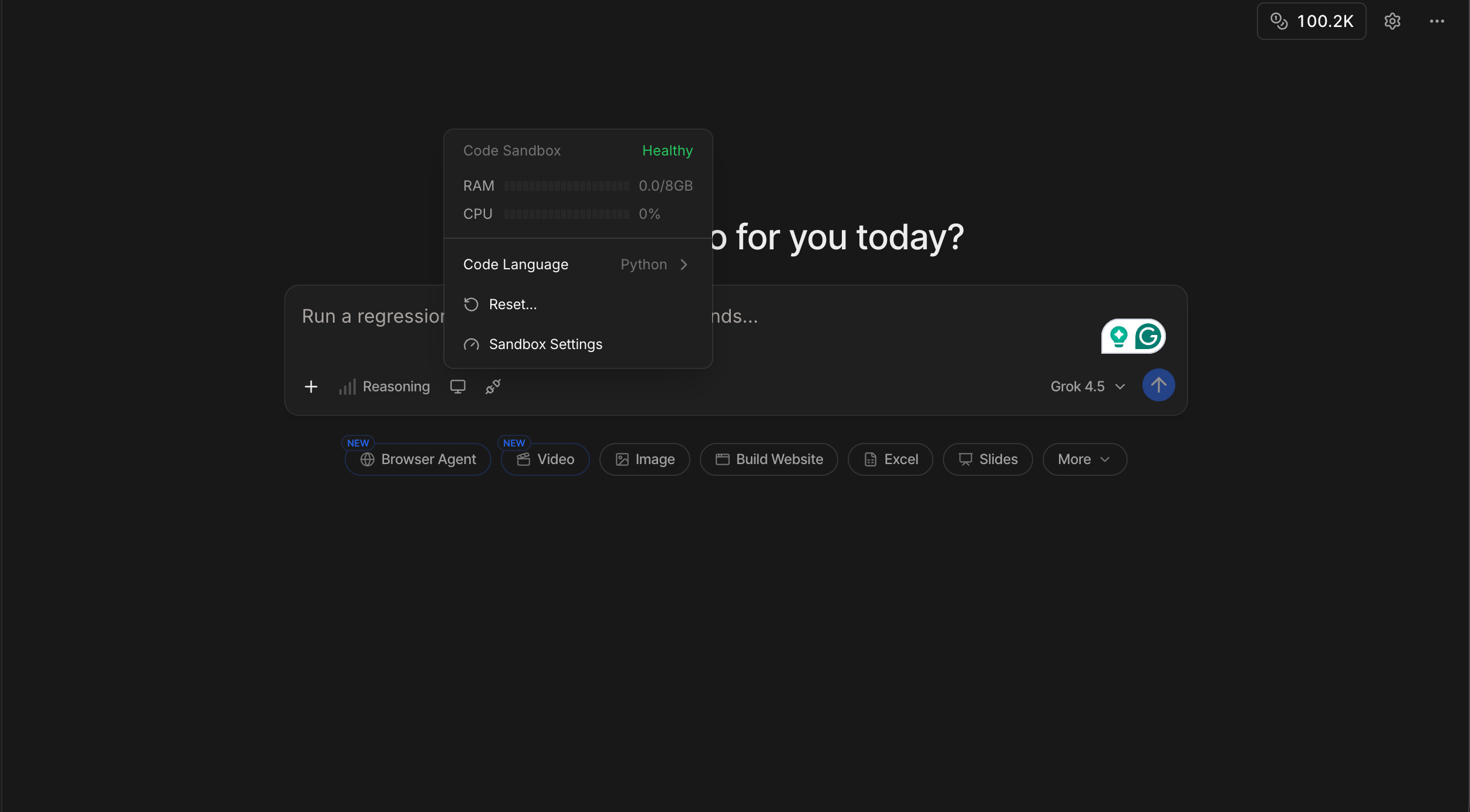
Julius crashed in the middle of an analysis
Julius crashed in the middle of an analysis
AI will sometimes do something called ‘hallucinating’ when it starts to go into loops and can’t produce an output.Try to reword the prompt to be more specific and have more detail to help guide Julius.If there have been multiple crashes, it’s best to start a new thread from scratch so the AI can refresh and restart to provide a better output.
Not receiving my one-time code to verify my email
Not receiving my one-time code to verify my email
The code can sometimes get sent to your spam email.If it’s not in your spam, send us and email at team@julius.ai.
Download Failure
Download Failure
If you’re unable to click and download files/visualizations from Julius directly, try the following troubleshooting steps:
-
look for the file in your available files
- try refreshing the browser
- ask Julius to reproduce the document for you