> ## Documentation Index
> Fetch the complete documentation index at: https://julius.ai/docs/llms.txt
> Use this file to discover all available pages before exploring further.

# Schedule a Notebook

> You can now create scheduled notebooks to automatically rerun data workflows, generate reports, or refresh your analyses without having to create a new one each time!

Here's how you can schedule a notebook:

<Steps>
  <Step title="Open a Notebook">
    Open an existing Notebook, or create a new one in [My Notebooks](https://julius.ai/notebooks).
  </Step>

  <Step title="Find the Schedule Icon">
    Click on the clock icon to open up the scheduler:

    <img src="https://mintcdn.com/julius-d061c216/wet7wmuelt3jEOkg/images/notebooks/scheduled-notebooks/notebooks-schedule-icon.png?fit=max&auto=format&n=wet7wmuelt3jEOkg&q=85&s=40db24134b2014bdc98545126bfd91f7" alt="Notebook schedule clock icon" title="Notebook schedule clock icon" style={{ width:"30%" }} width="326" height="86" data-path="images/notebooks/scheduled-notebooks/notebooks-schedule-icon.png" />
  </Step>

  <Step title="Enable Schedule ">
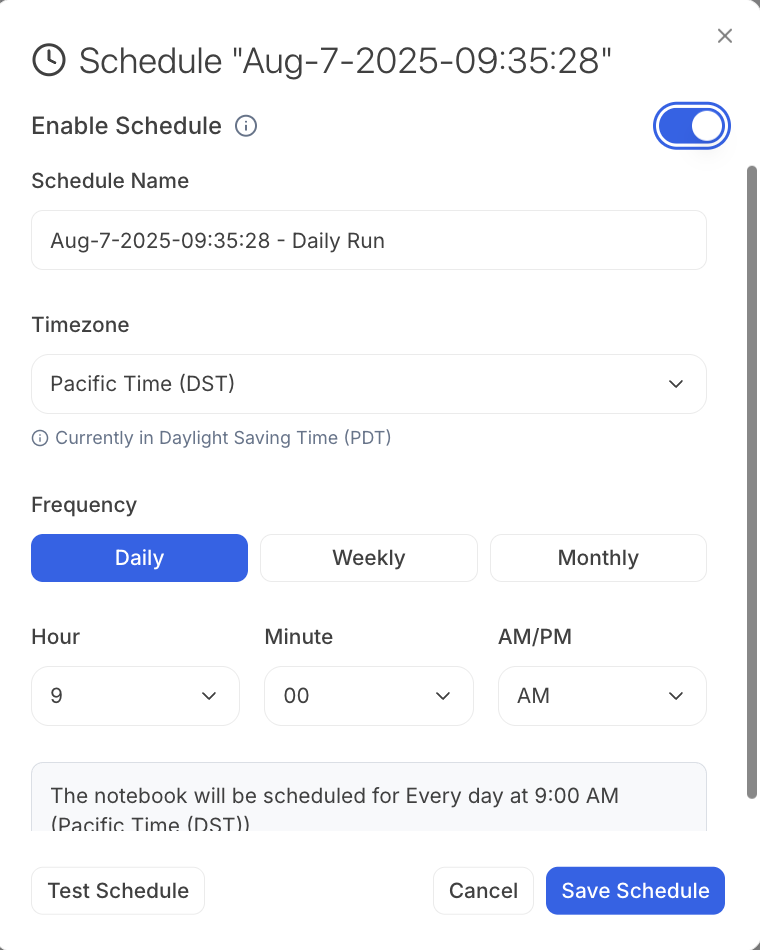
    Turn the Enable Schedule toggle on and fill in the details:
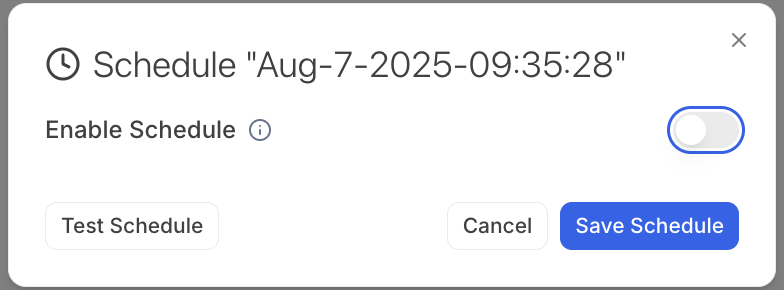
    <img src="https://mintcdn.com/julius-d061c216/wet7wmuelt3jEOkg/images/notebooks/scheduled-notebooks/notebooks-schedule-toggle.png?fit=max&auto=format&n=wet7wmuelt3jEOkg&q=85&s=41efb3a656d1e0b25d3fba7c527bbcf5" alt="Notebook enable schedule toggle" title="Notebook enable schedule toggle" style={{ width:"40%" }} width="784" height="290" data-path="images/notebooks/scheduled-notebooks/notebooks-schedule-toggle.png" />

    <img src="https://mintcdn.com/julius-d061c216/wet7wmuelt3jEOkg/images/notebooks/scheduled-notebooks/notebooks-schedule-settings.png?fit=max&auto=format&n=wet7wmuelt3jEOkg&q=85&s=f7ffe7fd2899ec47d79ee7627d653557" alt="Notebook schedule settings form" title="Notebook schedule settings form" style={{ width:"40%" }} width="760" height="950" data-path="images/notebooks/scheduled-notebooks/notebooks-schedule-settings.png" />

    You've scheduled your Notebook to run automatically! Congrats!
  </Step>

  <Step title="See your Scheduled Notebooks">
    Find all of your scheduled notebooks in **My Notebooks** in the **Scheduled** tab
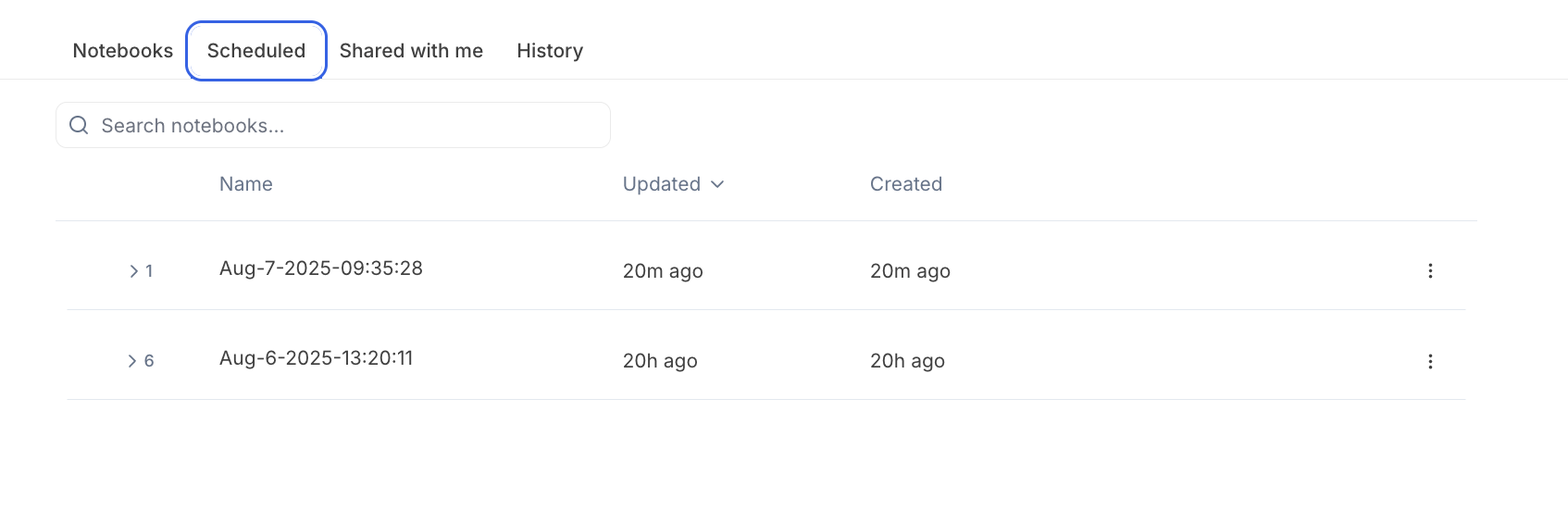
    <img src="https://mintcdn.com/julius-d061c216/wet7wmuelt3jEOkg/images/notebooks/scheduled-notebooks/notebooks-scheduled-tab.png?fit=max&auto=format&n=wet7wmuelt3jEOkg&q=85&s=85467a30e139bafb52f5d6c05876a8f4" alt="Scheduled notebooks tab in My Notebooks" title="Scheduled notebooks tab in My Notebooks" style={{ width:"69%" }} width="1694" height="552" data-path="images/notebooks/scheduled-notebooks/notebooks-scheduled-tab.png" />
  </Step>
</Steps>

<Note>
  Use the **Test Schedule** feature to do an instant run of the scheduled Notebook. Great for a quick preview of your scheduled run.
</Note>

***

<Info>
  Reach out to [**team@julius.ai**](mailto:team@julius.ai) for support or to ask questions not answered in our documentation.
</Info>