> ## Documentation Index
> Fetch the complete documentation index at: https://julius.ai/docs/llms.txt
> Use this file to discover all available pages before exploring further.
# Reproducibility in Notebooks
> Freeze Julius-generated code into deterministic notebook cells you can rerun.
## Why this matters
Turning an AI result into a set of real notebook cells makes your workflow
reliable and repeatable:
* **Deterministic runs**: Cells execute the same code every time instead of
asking Julius to re-generate it.
* **Shareable and reviewable**: Teammates can inspect, run, and modify the exact
code.
* **Faster**: Code cells complete faster than Julius takes to think through
natural language prompts.
## How it works
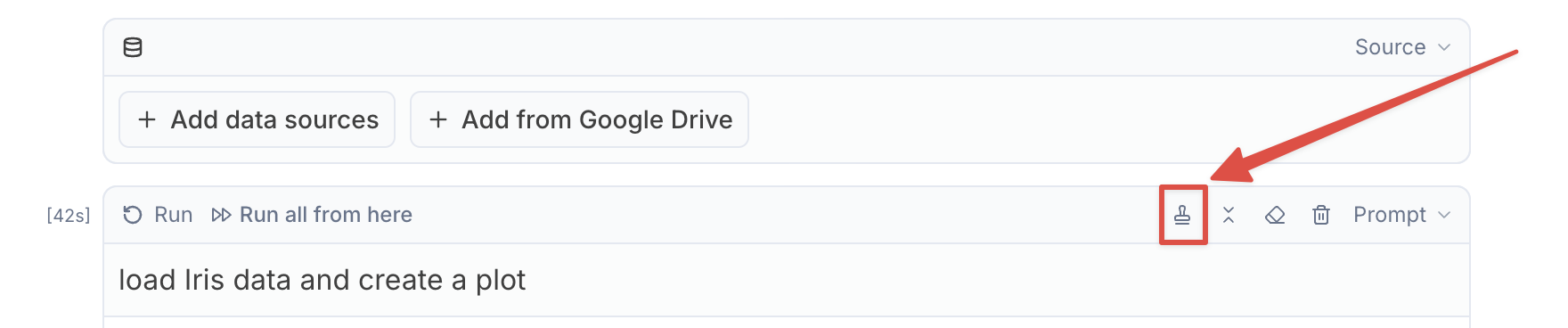
When Julius finishes running code for a prompt cell, a small **stamp icon**
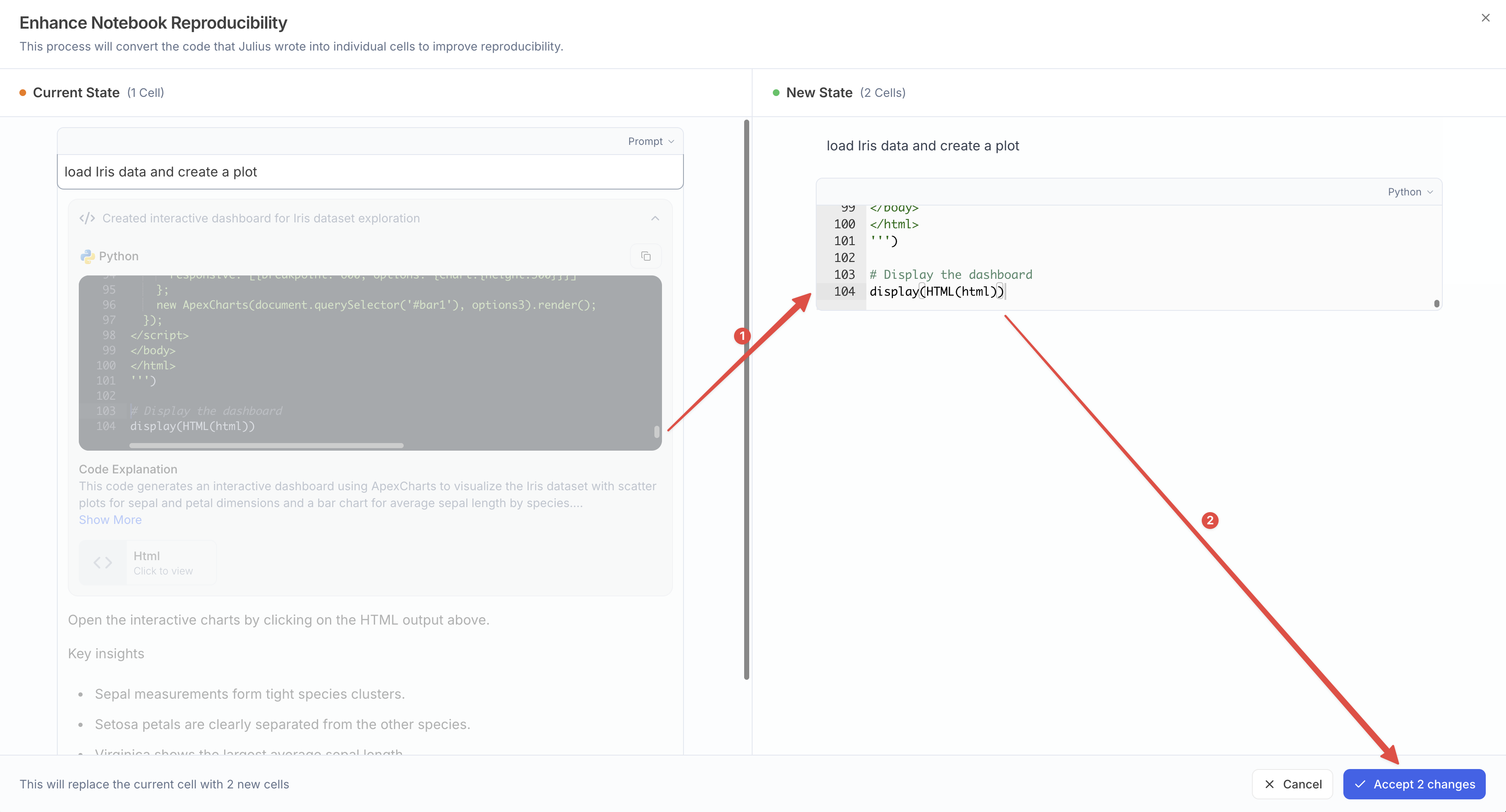
appears in the cell header. Clicking it opens an interface that converts the
Julius output into individual notebook cells.
These new cells contain the exact code Julius executed. Accepting the change
replaces the single prompt cell with the generated code cells so future runs are
fully reproducible.
## Step-by-step
1. **Run a prompt cell** with your instruction (e.g., “load Iris data and create
a plot”).
2. After execution, click the **stamp icon** in the cell header.
3. In the conversion view, review the proposed cells on the right. You’ll see
your workflow broken into multiple, executable cells. {' '}
4. Click **Accept changes** to apply. The original prompt cell is replaced with
the new code cells.
You can still add new prompt cells later to explore further, then convert
those results as needed. Mix and match prompt cells with code cells for a
flexible workflow.
## What gets converted
* **Python code** that Julius wrote gets converted into notebook code cells
* **Julius Prompt** that you wrote gets converted into a text cell
Each time you run the converted cells, outputs are produced by the code in the
notebook—not by a new AI generation.
## FAQ
* **Does this remove my original prompt?** No! Once you make the conversion, the
original prompt gets converted into a text cell.
* **Can I view what would happen, without converting?** Yes—close the conversion
view or press Cancel; no changes are applied until you accept them.
* **What languages are supported?** This process works for Python, R, and SQL.