> ## Documentation Index
> Fetch the complete documentation index at: https://julius.ai/docs/llms.txt
> Use this file to discover all available pages before exploring further.
# Notebooks FAQ
> Ask, and you shall receive.
With Notebooks you have:
* Scheduled, automated runs of your analysis
* Ability to add, delete and reorder cells
* Can write, run, and edit Python code in cells
* Variables and data stay in memory across the conversation
**Choose Notebooks** when you need to analyze data, work with files, create visualizations, or do any coding/computational work, especially when it's a repetitive analysis.
**Choose Threads** for general questions, writing assistance, brainstorming, or simple text-based conversations
Here's the step-by-step: [Building a Notebook](https://julius.ai/docs/notebooks/building-a-notebook)
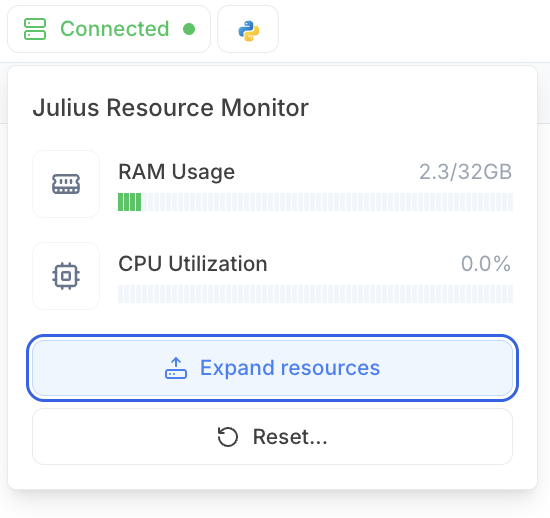
1. **Click your Resource Monitor** in the top left
2. Click **Reset or Restart**.
We suggest **Restarting** first. If that doesn't resolve your issue, try **Resetting**. Note that **resetting** will completely reset Julius settings, including removing your files.
 If you're still running into issues, reach out to us at [**team@julius.ai**](mailto:team@julius.ai).
We don't support directly editing the output code, yet, but here's a workaround:
* Copy the code from Julius
* Paste it into a **Code Cell** to edit and **Run**
If you have any questions that haven't been answered, feel free to reach out to us at [**team@julius.ai**](mailto:team@julius.ai)
If you're still running into issues, reach out to us at [**team@julius.ai**](mailto:team@julius.ai).
We don't support directly editing the output code, yet, but here's a workaround:
* Copy the code from Julius
* Paste it into a **Code Cell** to edit and **Run**
If you have any questions that haven't been answered, feel free to reach out to us at [**team@julius.ai**](mailto:team@julius.ai)