> ## Documentation Index
> Fetch the complete documentation index at: https://julius.ai/docs/llms.txt
> Use this file to discover all available pages before exploring further.

# Building a Notebook

> There are several ways to get started using Notebooks! 

To build a Notebook you can start by copying an existing Notebook, or by
starting from scratch!

<Accordion title="Start a Notebook from scratch" defaultOpen="true">
  You can also build your Notebook from scratch!

  <Steps>
    <Step title="Step 1">
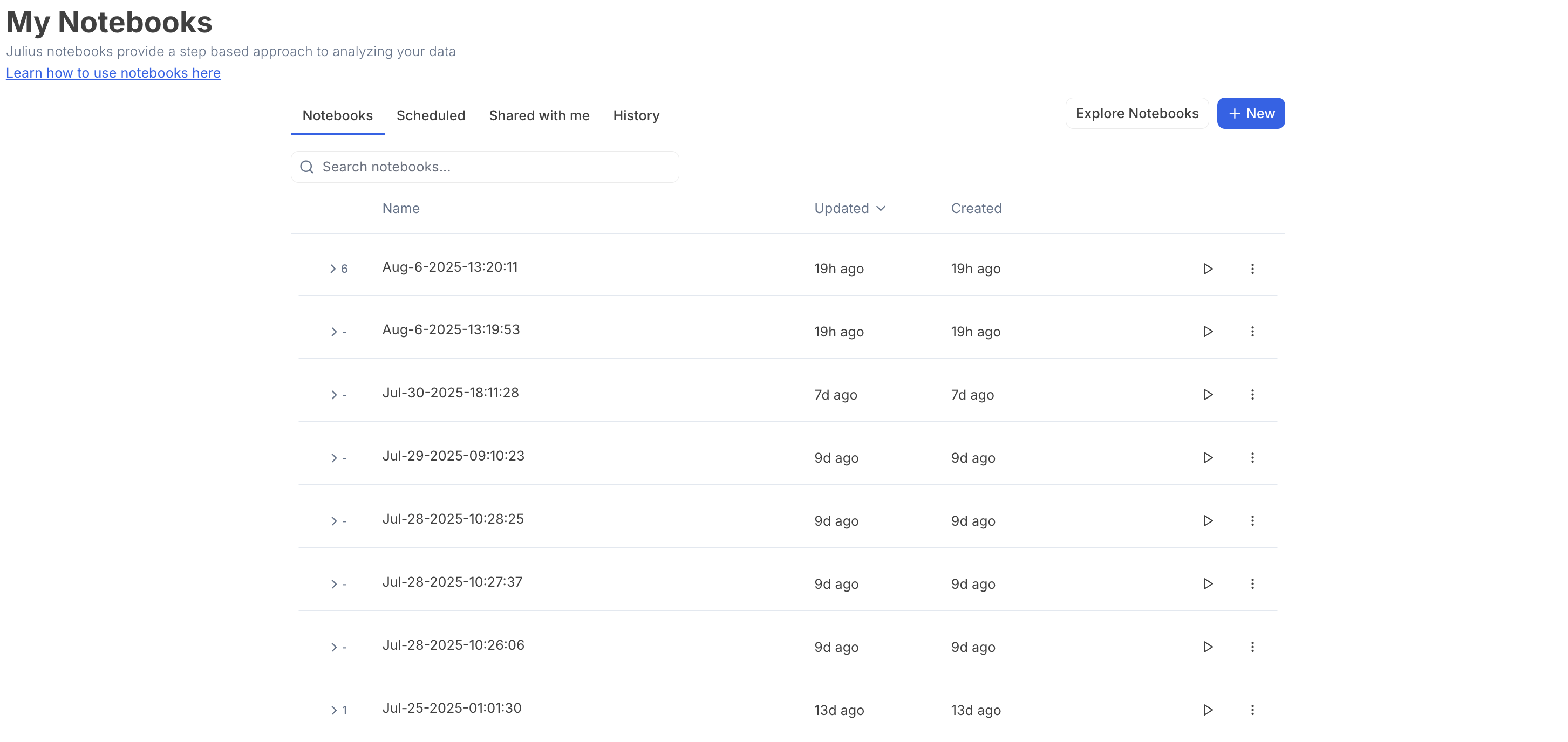
      Navigate to [My Notebooks](https://julius.ai/notebooks/)
    </Step>

    <Step title="Step 2">
      Click **+ New**

      <img src="https://mintcdn.com/julius-d061c216/wet7wmuelt3jEOkg/images/notebooks/building-a-notebook/notebooks-new-button.png?fit=max&auto=format&n=wet7wmuelt3jEOkg&q=85&s=7df2f4afda5e8336c913e29c86f8aab6" alt="New notebook button in My Notebooks" title="New notebook button in My Notebooks" style={{ width:"78%" }} width="2906" height="1376" data-path="images/notebooks/building-a-notebook/notebooks-new-button.png" />

      You can now start adding cells to your blank Notebook! 🎉
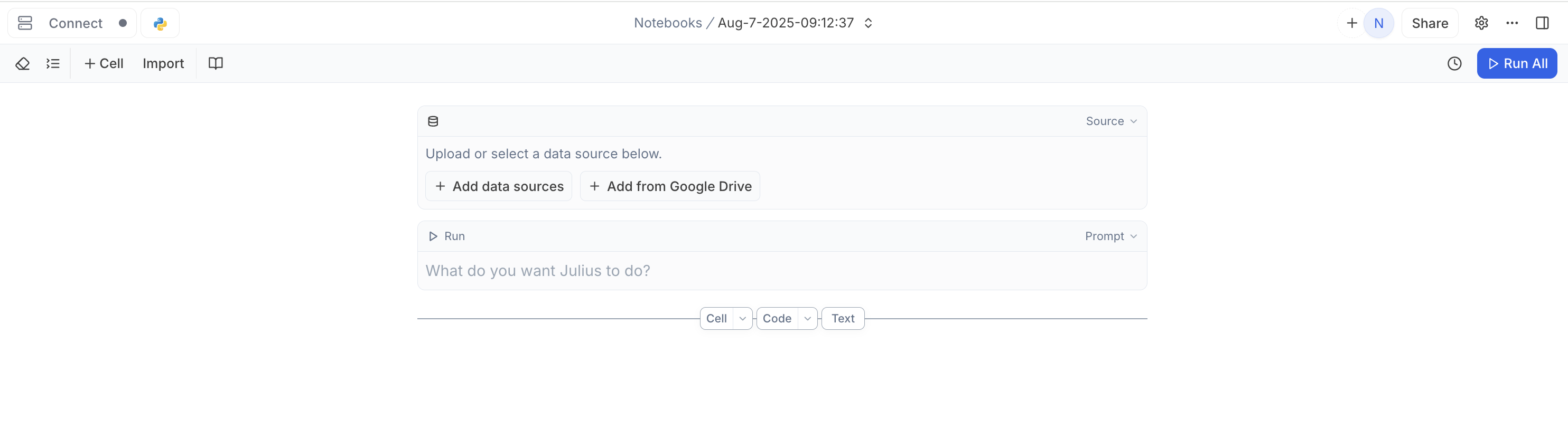
      <img src="https://mintcdn.com/julius-d061c216/FYM8NUtCrVJzhSKO/images/notebooks/building-a-notebook/notebooks-empty-notebook.png?fit=max&auto=format&n=FYM8NUtCrVJzhSKO&q=85&s=d3447c22ff7a7c7a004297172b6d0144" alt="Blank notebook canvas" title="Blank notebook canvas" style={{ width:"78%" }} width="2968" height="830" data-path="images/notebooks/building-a-notebook/notebooks-empty-notebook.png" />
    </Step>
  </Steps>
</Accordion>

<Accordion title="Use an existing Notebook" defaultOpen="true">
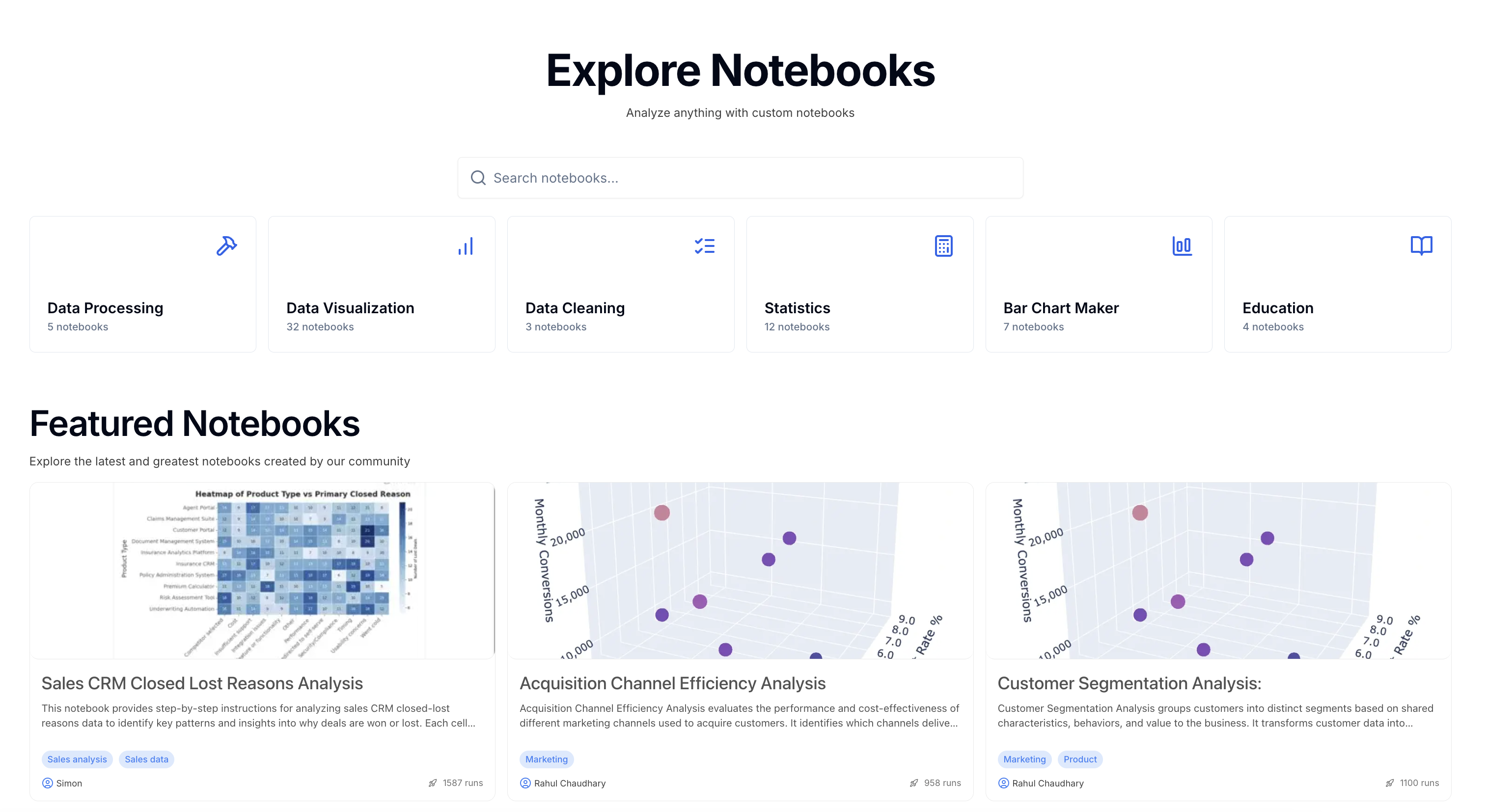
  You can copy an existing Notebook from the [Explore Notebooks](https://julius.ai/Notebooks/) page.

  <Steps>
    <Step title="Step 1">
      Navigate to the [Explore Notebooks](https://julius.ai/notebooks/explore) page

      <Frame>
        <img src="https://mintcdn.com/julius-d061c216/FYM8NUtCrVJzhSKO/images/notebooks/building-a-notebook/notebooks-explore-page.png?fit=max&auto=format&n=FYM8NUtCrVJzhSKO&q=85&s=91e32c0aca123e0718cfeefe476f146b" alt="Explore Notebooks gallery view" title="Explore Notebooks gallery view" className="mx-auto" style={{ width:"75%" }} width="2350" height="300" data-path="images/notebooks/building-a-notebook/notebooks-explore-page.png" />

        <img src="https://mintcdn.com/julius-d061c216/wet7wmuelt3jEOkg/images/notebooks/building-a-notebook/notebooks-explore-preview.png?fit=max&auto=format&n=wet7wmuelt3jEOkg&q=85&s=3eb7610f5b634a831b6321710465a87c" alt="Notebook preview in Explore Notebooks" title="Notebook preview in Explore Notebooks" className="mx-auto" style={{ width:"69%" }} width="3028" height="1654" data-path="images/notebooks/building-a-notebook/notebooks-explore-preview.png" />
      </Frame>
    </Step>

    <Step title="Step 2">
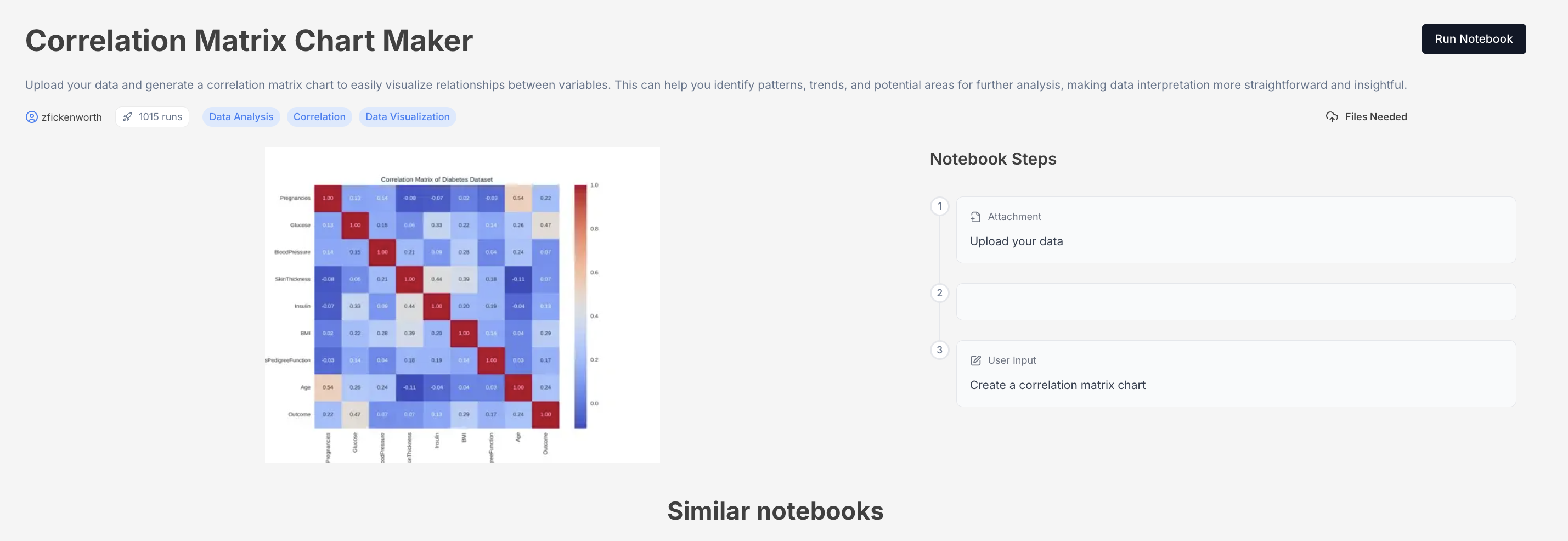
      Find and select the Notebook that closely resembles your use-case.

      <Frame>
        <img src="https://mintcdn.com/julius-d061c216/wet7wmuelt3jEOkg/images/notebooks/building-a-notebook/notebooks-select-template.png?fit=max&auto=format&n=wet7wmuelt3jEOkg&q=85&s=762f8845a703230b05e8854b90447554" alt="Selecting a notebook template to copy" title="Selecting a notebook template to copy" className="mx-auto" style={{ width:"94%" }} width="2968" height="394" data-path="images/notebooks/building-a-notebook/notebooks-select-template.png" />
      </Frame>
    </Step>

    <Step title="Step 3">
      Click **Run Notebook**

      <Frame>
        <img src="https://mintcdn.com/julius-d061c216/wet7wmuelt3jEOkg/images/notebooks/building-a-notebook/notebooks-run-notebook-button.png?fit=max&auto=format&n=wet7wmuelt3jEOkg&q=85&s=9b141714d9a9e03b5dbae26b0fab067a" alt="Run notebook button" title="Run notebook button" className="mx-auto" style={{ width:"84%" }} width="2858" height="986" data-path="images/notebooks/building-a-notebook/notebooks-run-notebook-button.png" />
      </Frame>
    </Step>

    <Step title="Step 4">
      This will create a copy of the Notebook in your personal Workspace that you can now edit! 🎉
    </Step>
  </Steps>
</Accordion>

<Accordion title="Import a Jupyter Notebook" defaultOpen>
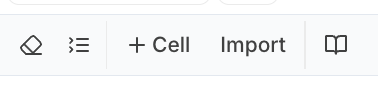
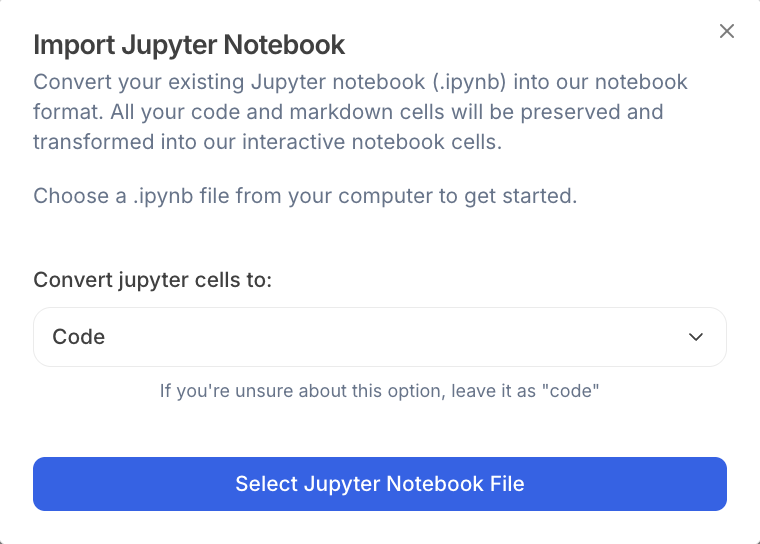
  You can convert your existing Jupyter notebook (.ipynb) into our Notebook format.

  All your code and markdown cells will be preserved and transformed into our interactive Notebook cells.
  <Steps>
    <Step title="Select Import">
      <img src="https://mintcdn.com/julius-d061c216/wet7wmuelt3jEOkg/images/notebooks/building-a-notebook/notebooks-import-button.png?fit=max&auto=format&n=wet7wmuelt3jEOkg&q=85&s=a90596d8042dad0fb751760fefe7d999" alt="Import Jupyter notebook button" title="Import Jupyter notebook button" className="mx-auto" style={{ width:"44%" }} width="378" height="88" data-path="images/notebooks/building-a-notebook/notebooks-import-button.png" />
    </Step>

    <Step title="Choose a .ipynb file from your computer to get started.">
      <img src="https://mintcdn.com/julius-d061c216/wet7wmuelt3jEOkg/images/notebooks/building-a-notebook/notebooks-import-file-picker.png?fit=max&auto=format&n=wet7wmuelt3jEOkg&q=85&s=5a4f3a41d7bbe127811efe2c65f1dd42" alt="File picker for importing Jupyter notebook" title="File picker for importing Jupyter notebook" className="mx-auto" style={{ width:"53%" }} width="760" height="544" data-path="images/notebooks/building-a-notebook/notebooks-import-file-picker.png" />
    </Step>
  </Steps>
</Accordion>

***

<Info>
  Reach out to [**team@julius.ai**](mailto:team@julius.ai) for support or to ask questions not answered in our documentation.
</Info>