> ## Documentation Index
> Fetch the complete documentation index at: https://julius.ai/docs/llms.txt
> Use this file to discover all available pages before exploring further.
# Viewing Learned Information
> How to view and manage what the learning sub agent has discovered about your data connectors
## Overview
You can view and manage what the learning sub agent has discovered about your data connectors at any time. Navigate to your [Data Connectors page](https://julius.ai/data-connectors) to access your learned information.
## How to View Learned Information
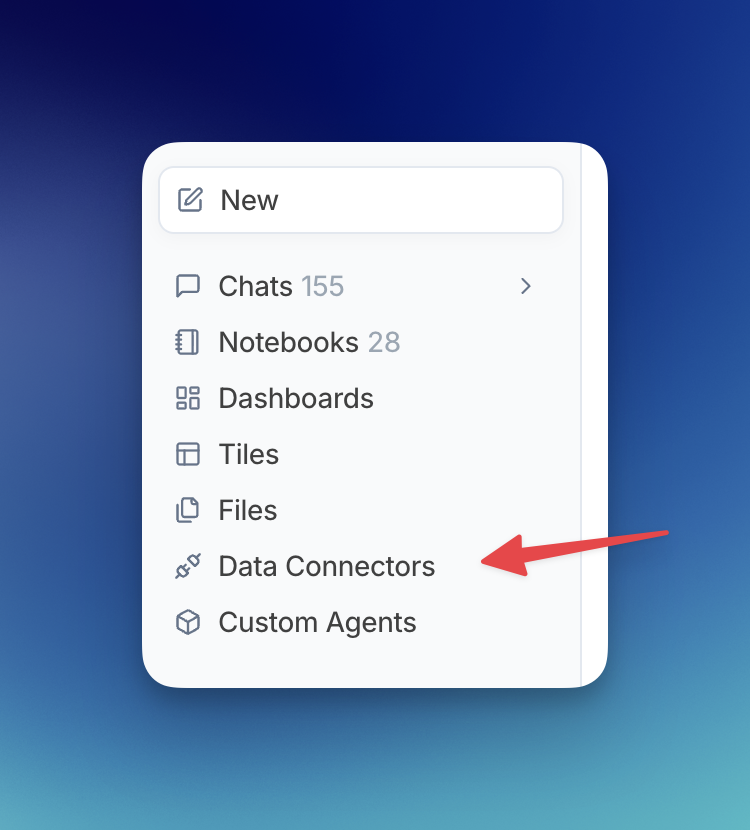
**Step 1: Navigate to Data Connectors**
Open the sidebar menu and click on **Data Connectors**, or visit [julius.ai/data-connectors](https://julius.ai/data-connectors) directly.
 **Step 2: Select Your Connector**
Find the data connector you want to view and click **See what AI has learned**.
**Step 2: Select Your Connector**
Find the data connector you want to view and click **See what AI has learned**.
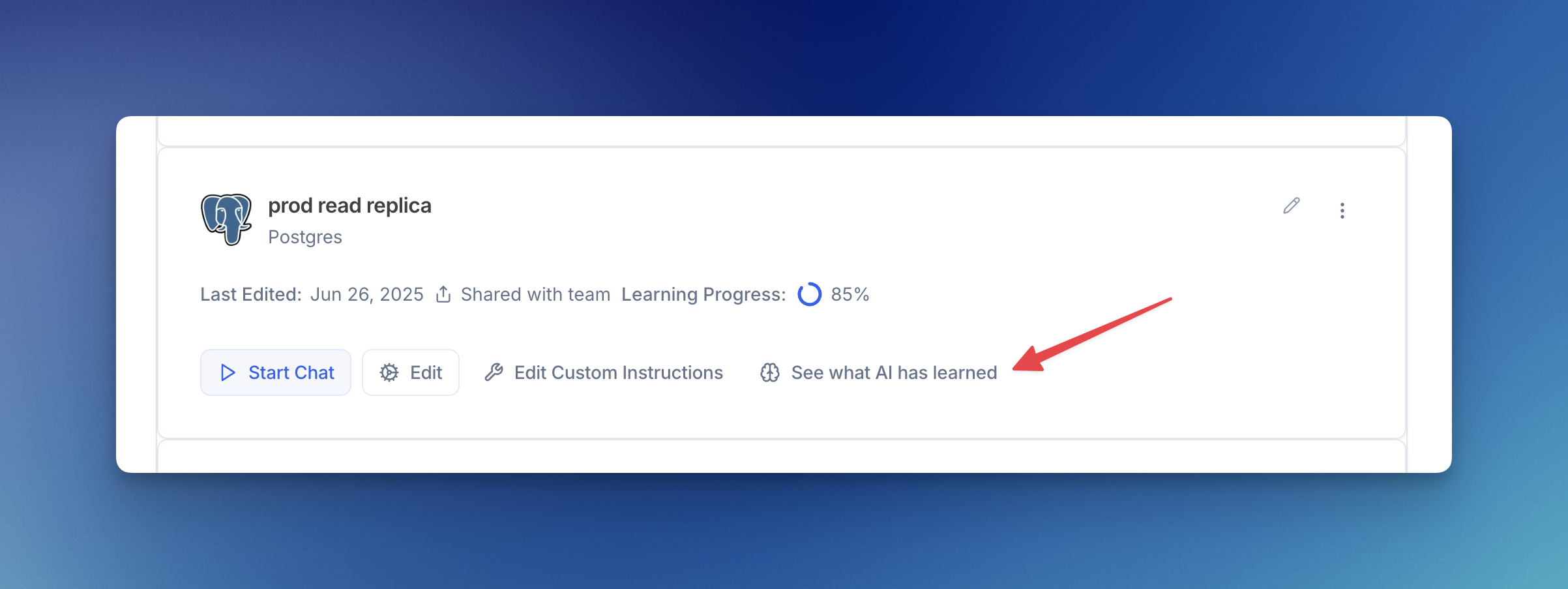 The learning progress indicator shows how much Julius has learned about your connector. As you use the connector more, and more rows are added to the learned information table, this percentage will increase to a max of 85% currently!
**Step 3: View Learned Information**
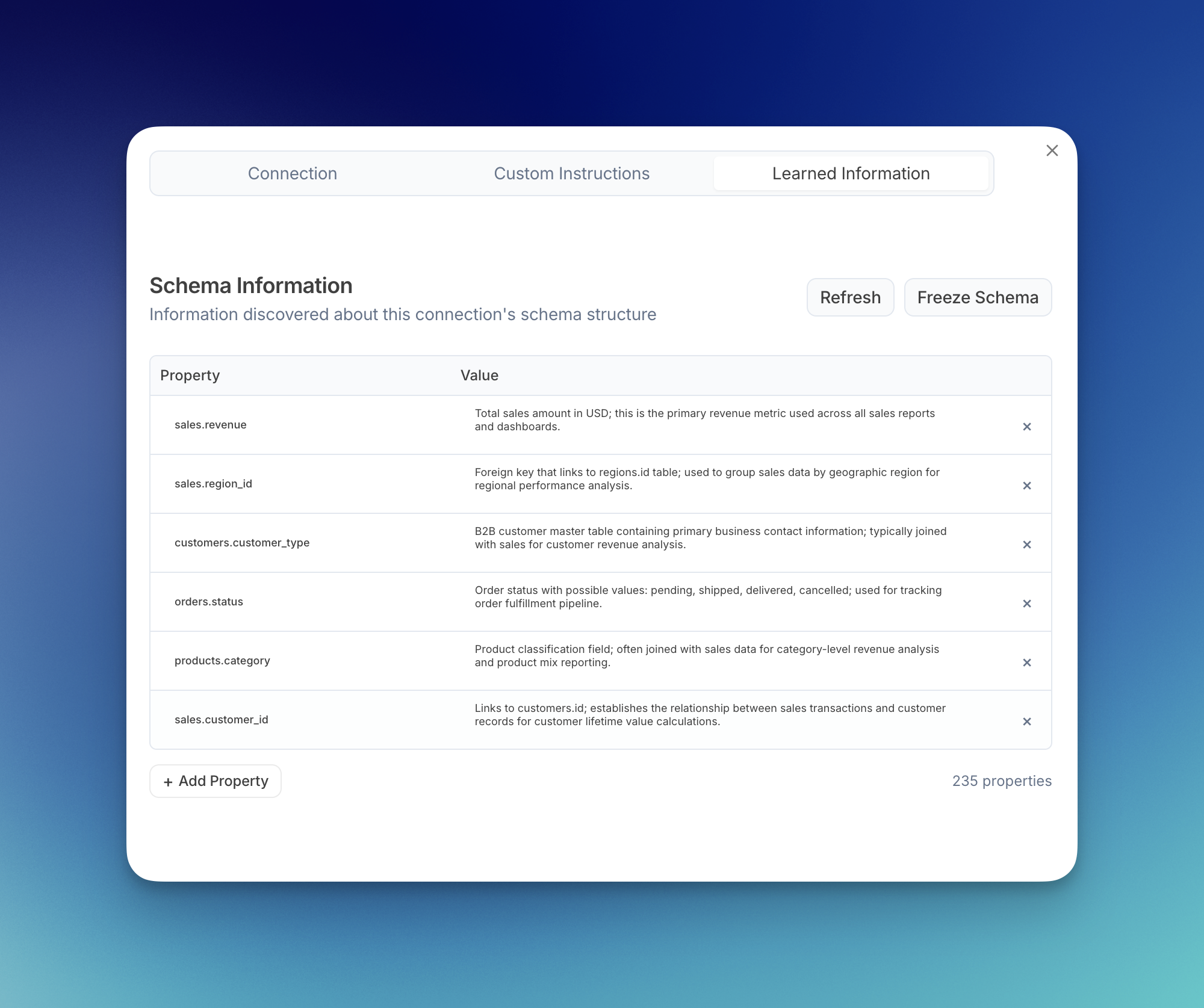
Click the **Learned Information** tab to see all the schema knowledge Julius has discovered. Here you can:
* **View all learned properties**: See the table and column names along with their learned descriptions
* **Refresh**: Manually trigger the learning sub agent to analyze recent conversations
* **Freeze Schema**: Prevent the sub agent from making automatic updates
* **Add Property**: Manually add your own schema knowledge
* **Delete entries**: Remove individual learned properties by clicking the X
The learning progress indicator shows how much Julius has learned about your connector. As you use the connector more, and more rows are added to the learned information table, this percentage will increase to a max of 85% currently!
**Step 3: View Learned Information**
Click the **Learned Information** tab to see all the schema knowledge Julius has discovered. Here you can:
* **View all learned properties**: See the table and column names along with their learned descriptions
* **Refresh**: Manually trigger the learning sub agent to analyze recent conversations
* **Freeze Schema**: Prevent the sub agent from making automatic updates
* **Add Property**: Manually add your own schema knowledge
* **Delete entries**: Remove individual learned properties by clicking the X
 ## Managing Learned Information
The learned information interface gives you full control over what Julius knows about your data:
**Manual Additions**: You can manually add schema knowledge by clicking **Add Property**. This is useful for documenting relationships or business context that Julius hasn't discovered yet.
**Freezing Schema**: Use the **Freeze Schema** option to lock the learned information and prevent automatic updates. This is helpful if you want to maintain consistent behavior.
**Refreshing**: The **Refresh** button manually triggers the learning sub agent to analyze your recent conversations and update the learned information immediately.
**Deleting Entries**: Click the X next to any learned property to remove it. This is useful for removing outdated or incorrect information.
## Managing Learned Information
The learned information interface gives you full control over what Julius knows about your data:
**Manual Additions**: You can manually add schema knowledge by clicking **Add Property**. This is useful for documenting relationships or business context that Julius hasn't discovered yet.
**Freezing Schema**: Use the **Freeze Schema** option to lock the learned information and prevent automatic updates. This is helpful if you want to maintain consistent behavior.
**Refreshing**: The **Refresh** button manually triggers the learning sub agent to analyze your recent conversations and update the learned information immediately.
**Deleting Entries**: Click the X next to any learned property to remove it. This is useful for removing outdated or incorrect information.