> ## Documentation Index
> Fetch the complete documentation index at: https://julius.ai/docs/llms.txt
> Use this file to discover all available pages before exploring further.
# Containers
> Learn what a container is, how long containers last, and the different types of containers available for the different plans.
A **container** is the virtual environment where Julius is manipulating your [files](https://julius.ai/docs/get-started/files) to execute code, perform analysis, and generate visualizations! Each container acts like a remote computer in the cloud, and like a computer a container has dedicated resources like RAM and CPU.
### Container Persistence
By default all free and paid user containers are live for up to 1 hour of inactivity. After 1 hour of inactivity, the container is spun down.
### Types of Containers
There are three types of containers -- **Standard**, which is included in all plans, and **Longer Lifespan** and **Memory Boost** which are available on the Pro plan and higher.
| Container Type | Container Persistence | Amount of RAM | Plan Type |
| --------------- | --------------------- | ------------- | ------------------- |
| Standard | 1 Hour | 8 GB | All plans |
| Longer Lifespan | 3 Hours | 8 GB | Pro plan and higher |
| Memory Boost | 1 Hour | 32 GB | Pro plan and higher |
Click the **Code Sandbox** icon in the chat bar to view your container's status and access **Reset...** and **Sandbox Settings**:
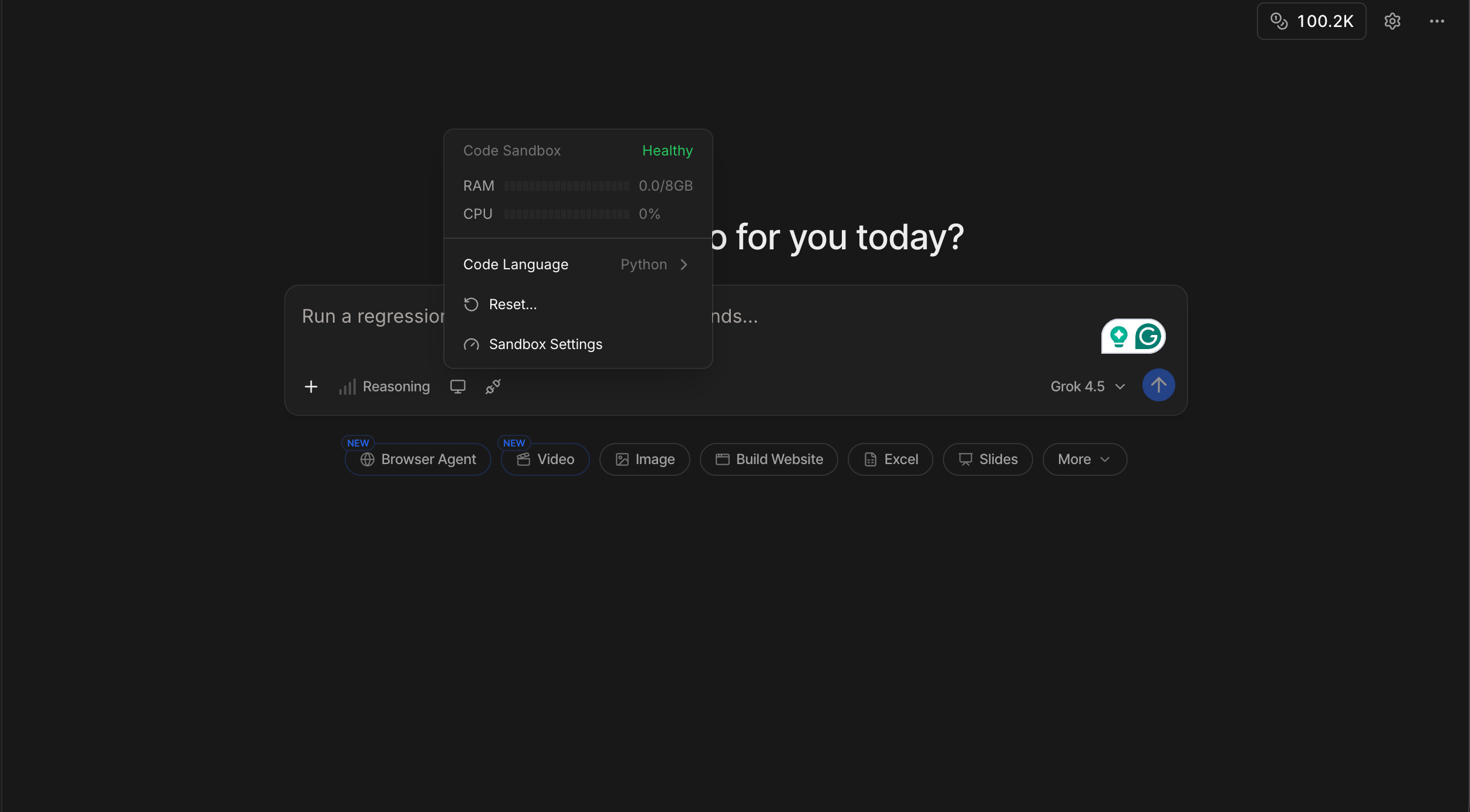 You can manually **restart** Julius while preserving your files and settings. Choose this option if you're experiencing performance issues.
Click the **Code Sandbox** icon in the chat bar (next to Reasoning)
Click **Reset...**, then click **Restart container** in the dialog that appears
This safely restarts the code environment and preserves your files and settings.
If restarting doesn't fix the issue and you want to start from a clean slate, you can **factory reset** your container instead. This will:
* Permanently delete all uploaded files
* Clear all memory
* Reset to default settings
Click the **Code Sandbox** icon in the chat bar, then click **Reset...**
Expand **I'm still having issues** to reveal **Factory Reset**
Check **I confirm I want to delete my files and reset my settings**, then click **Reset container and delete user data**
This action is permanent and can't be undone.
To get more RAM or a longer container lifespan (Pro plan and higher), switch container types from **Sandbox Settings**:
Open **Chat Settings** and go to **Sandbox Settings**
Select **Longer Lifespan** or **Memory Boost**, based on the table above
***
Reach out to [**team@julius.ai**](mailto:team@julius.ai) for support or to ask questions not answered in our documentation.
You can manually **restart** Julius while preserving your files and settings. Choose this option if you're experiencing performance issues.
Click the **Code Sandbox** icon in the chat bar (next to Reasoning)
Click **Reset...**, then click **Restart container** in the dialog that appears
This safely restarts the code environment and preserves your files and settings.
If restarting doesn't fix the issue and you want to start from a clean slate, you can **factory reset** your container instead. This will:
* Permanently delete all uploaded files
* Clear all memory
* Reset to default settings
Click the **Code Sandbox** icon in the chat bar, then click **Reset...**
Expand **I'm still having issues** to reveal **Factory Reset**
Check **I confirm I want to delete my files and reset my settings**, then click **Reset container and delete user data**
This action is permanent and can't be undone.
To get more RAM or a longer container lifespan (Pro plan and higher), switch container types from **Sandbox Settings**:
Open **Chat Settings** and go to **Sandbox Settings**
Select **Longer Lifespan** or **Memory Boost**, based on the table above
***
Reach out to [**team@julius.ai**](mailto:team@julius.ai) for support or to ask questions not answered in our documentation.